
How to Give Neat Freak Tech Google Business Profile Access
How to Add Google Business Profile Access
If I’m helping you update or improve your Google Business Profile, you can give Neat Freak Tech Google Business Profile access without sharing your password.
Follow these steps:
1. Open Your Google Business Profile
Make sure you’re signed in to the Google account connected to your business.
Then use any of these three options:
Search for your business name in your browser. Type your business name into your browser’s address or search bar. Your Business Profile management tools should appear at the top of the Google search results.
Search "my business' on Google. Yes! This works. This shortcut will open your profile or show the profiles connected to your account.
Open Google Business Profile Manager. Go to business.google.com and select your business from the list.
Prefer to Use Your Phone and Google Maps? Jump to the steps.
Once your profile appears, you’re ready to open its settings.
2. Open Your Business Profile Settings
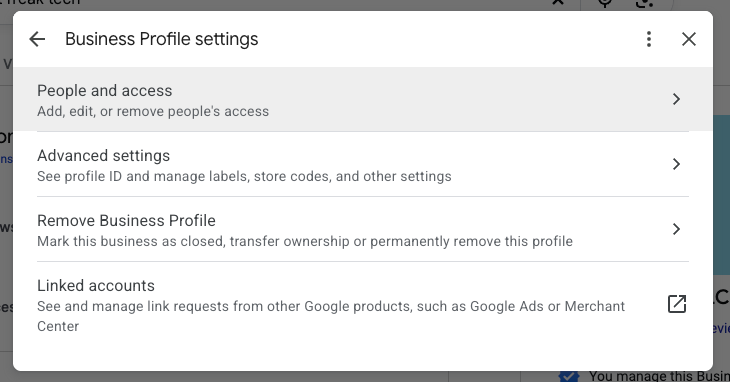
Click the three-dot menu and select Business Profile settings.

3. Select People and Access
Click People and access. This is where you can see and manage everyone who currently has access to your profile.
4. Click Add
Click the blue Add button near the top of the screen.

5. Enter the Neat Freak Tech ID
In the Email address field, enter:
5471490269
Even though Google labels the field “Email address,” the group ID will work here. After you enter the number, you should see:
Neat Freak Tech for Google Profiles
Select from the dropdown:

6. Choose Manager
Select Manager as the access level.
Manager access allows me to make updates to your Business Profile, while you remain in control of the profile and its ownership.
7. Click Invite
Click the blue Invite button.
That’s it! I’ll receive the invitation through my Neat Freak Tech organization and take it from there.
What If You Don’t See the Add Button?
If you do not see the blue Add button under People and access, check the role listed next to your name. You may be a Manager instead of an Owner.
Only an Owner or Primary Owner can add someone new. This sometimes happens when a franchise, former employee, marketing company, or technology partner created your profile and kept ownership.
If that’s the case, the person or company listed as an Owner will need to send the invitation for you.
Prefer to Do This From Your Phone?
You can also add Neat Freak Tech through the Google Maps app on your phone.
Make sure you’re signed in with the Google account connected to your business.
Then:
Open the Google Maps app.
Tap Business at the bottom of the screen. If you don’t see it, tap your profile picture and select Your Business Profiles.
Select the correct business.
Tap the three-dot menu or More.
Select Business Profile settings, then People and access.
Tap Add and enter the Neat Freak Tech organization number: 5909546365
Select Neat Freak Tech — Business Profile group.
Choose Manager, then tap Invite.
That’s it! You can complete the entire process from your phone— no computer required.


